

First time using DingBOX? Don’t worry! DingBOX is designed to be incredibly easy for anyone to use. In just a few minutes and three simple steps, you can set up your DingBOX, connect it to your TV, and start watching your favorite content right away. Below is a detailed, step-by-step guide that shows you exactly how to set up DingBOX and enjoy thousands of apps, movies, and TV channels within minutes. Even if you’re not tech-savvy, setting up DingBOX is as simple as plugging it in and connecting to Wi-Fi. Let’s get started and see how quickly you can bring your entertainment to life with DingBOX!
What You Will Need Before You Set Up DingBOX
Before you start to set up DingBOX, make sure you have everything ready. Each DingBOX package includes all the essential accessories you need for a smooth installation, no extra purchases or complicated preparation required. Here’s what you should have on hand:
- DingBOX TV box: the main device that connects to your TV.
- HDMI cable: used to connect DingBOX to your television.
- Power adapter: to supply power to the device.
- Remote control: for easy navigation and setup.
Once you’ve checked that all these items are available, you’re ready to move on to the next step. With everything prepared, it will only take a few minutes to set up a DingBOX TV box before your TV transforms into a full entertainment hub.
Set Up DingBOX to Your TV Step-by-Step
Setting up your DingBOX TV box takes only a few minutes and doesn’t require any technical skills. Whether you’re new to streaming devices or switching from a Smart TV, you can easily set up DingBOX by following these three simple steps and start enjoying your favorite content right away.
Step 1: Turn on your TV
- Turn on your television and make sure there’s an available HDMI port.
Step 2: Plug in DingBOX
- Plug one end of the HDMI cable into your DingBOX, and the other end into the TV’s HDMI port.
- Connect the power adapter to DingBOX and plug it into an electrical outlet.
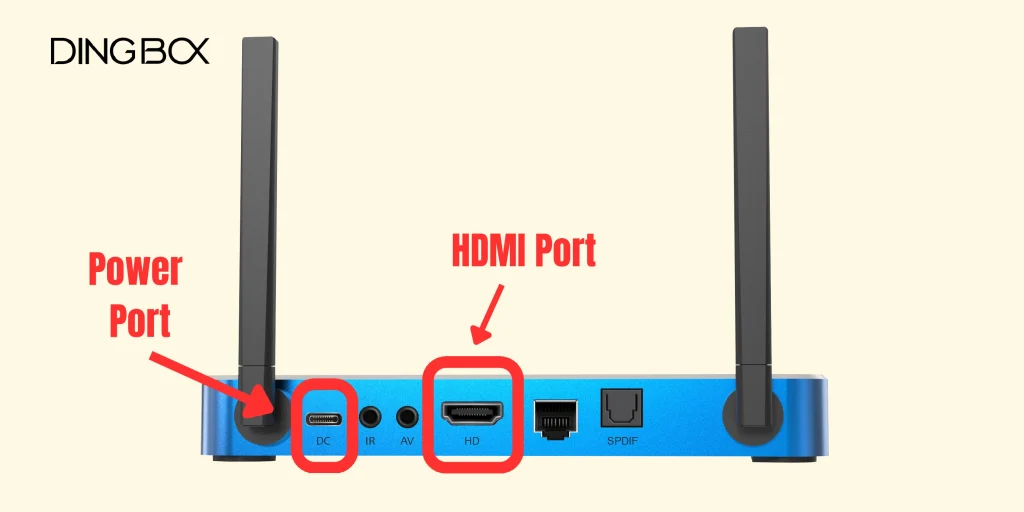
Once you’ve identified the HDMI and power ports as shown in the image above, double-check that each cable is firmly connected to avoid signal loss or power interruptions. Make sure the HDMI cable is fully inserted into both your TV and DingBOX, and the power adapter is plugged securely into the outlet. A proper connection ensures that your DingBOX can start up smoothly and deliver the best video and audio quality.
Step 3: Connect to Wi-Fi and Start Watching
- On the main screen, select Settings → Network & Internet → Wi-Fi.
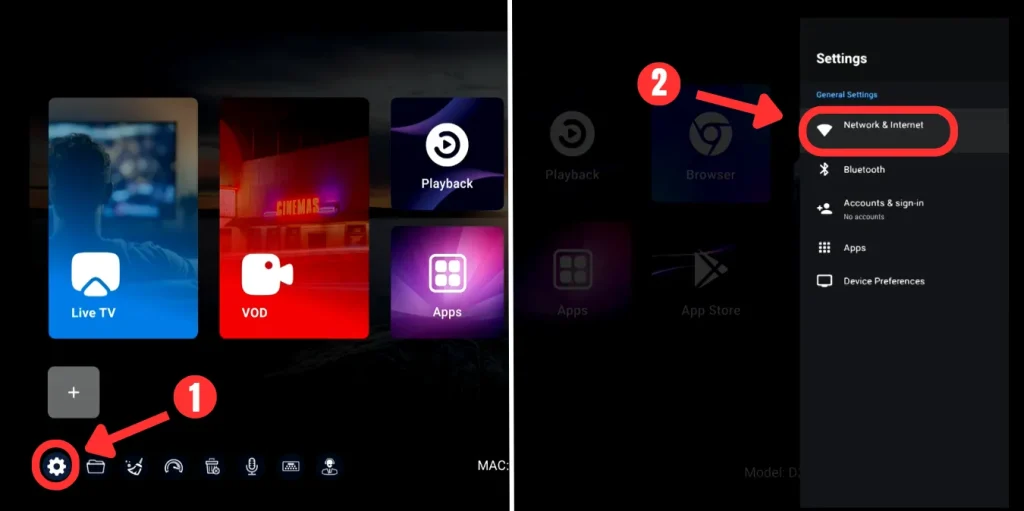
- Choose your home Wi-Fi network, enter the password, and click Connect.
When the Wi-Fi icon appears on your screen, your DingBOX is online and ready to stream. Now you can explore thousands of apps, movies, and TV channels right from your house. All you have to do is sit back and enjoy.
Connect DingBOX Remote to Your TV
After you’ve set up DingBOX, it’s time to connect the remote so you can start navigating your device with ease. DingBOX remotes are designed to pair automatically the first time you power on the device, but if it doesn’t connect right away, you can follow these quick steps to pair it manually.
- Make sure your remote has working batteries installed.
- Point it toward your DingBOX.
- Press and hold the “OK” and back button simultaneously for a few seconds until “Connected” appears on the screen.
If your remote still doesn’t respond, check that there’s nothing blocking the signal between the remote and the DingBOX, and try again. Once successfully paired, your remote will stay connected even after restarting your device, so you only need to do this once.
How to Use Voice Command
Using voice control makes navigating DingBOX easier and faster. Here’s how to get started:
- Make sure your remote is paired with DingBOX via Bluetooth.
- On your DingBOX remote, press and hold the microphone button.
- After holding the button, a voice prompt will appear on the screen, indicating that you can start speaking your command.
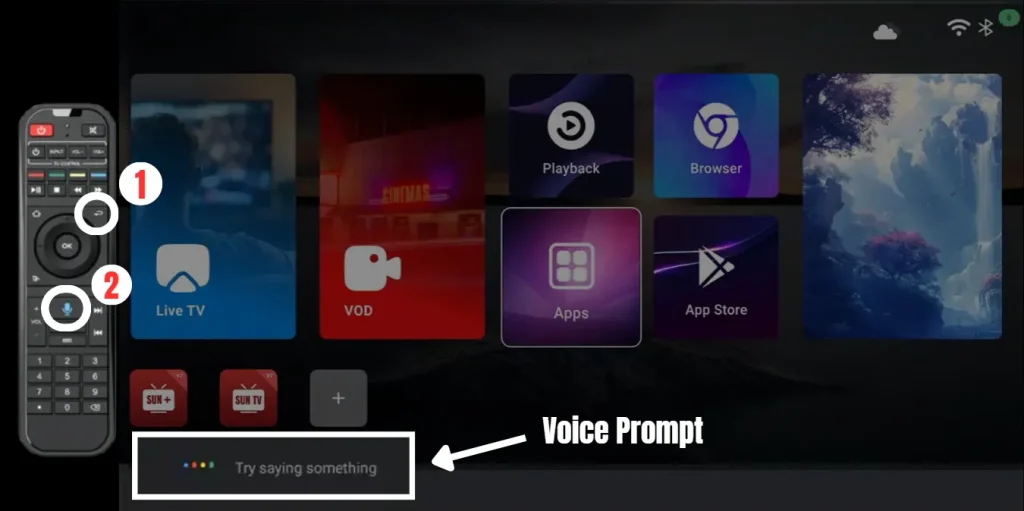
Let go of the button when you finish speaking, and DingBOX will process your command instantly. With this simple feature, controlling your DingBOX and finding your favorite content has never been easier.
How to Update Software and Apps on DingBOX
Keeping your DingBOX updated ensures that you always enjoy the best performance and latest features. Just like any smart device, regular updates help improve streaming quality and make the system run more smoothly. The example shown here is based on the update process of a DingBOX D2 model. Follow these simple steps to check and update your DingBOX software and apps:
- Open the App Store from your DingBOX home screen.
- Check if any installed apps show an update option with a gray circular arrow icon.
- Click the app and the latest version will be updated automatically.
- Wait a few minutes for the process to complete.
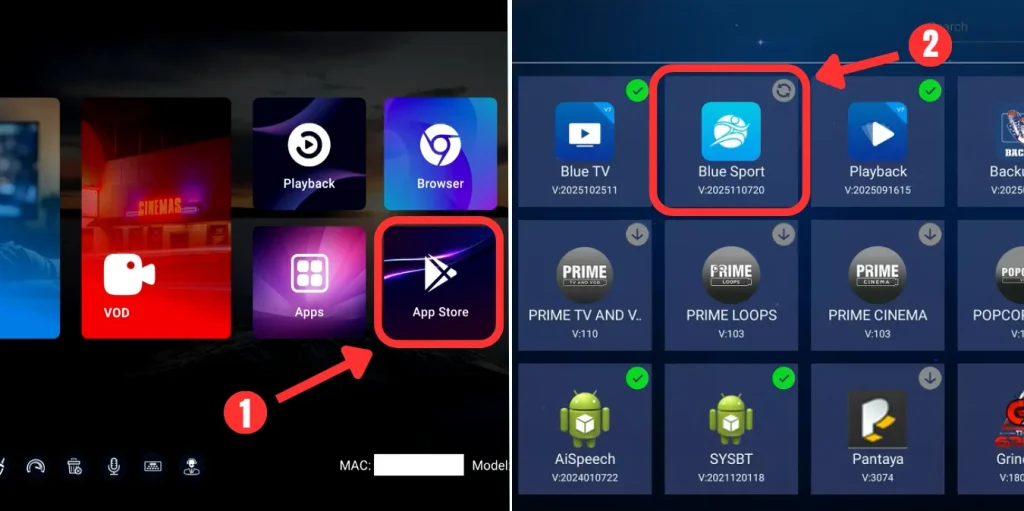
With these simple steps, your DingBOX will always stay up to date, run faster, and deliver the smoothest streaming experience every time.
Tips for Better Streaming Performance
Once you’ve finished setting up your DingBOX, a few small adjustments can help you get the best out of your device. To make sure your viewing experience stays fast, stable, and high-quality, try these practical tips to optimize your DingBOX setup and enjoy smooth streaming every time.
- Use a strong Wi-Fi connection: place your DingBOX close to your router or use a wired Ethernet connection for more stable performance.
- Keep software up to date: after you set up DingBOX, remember to check for regular system updates. Each update helps improve performance, stability, and security.
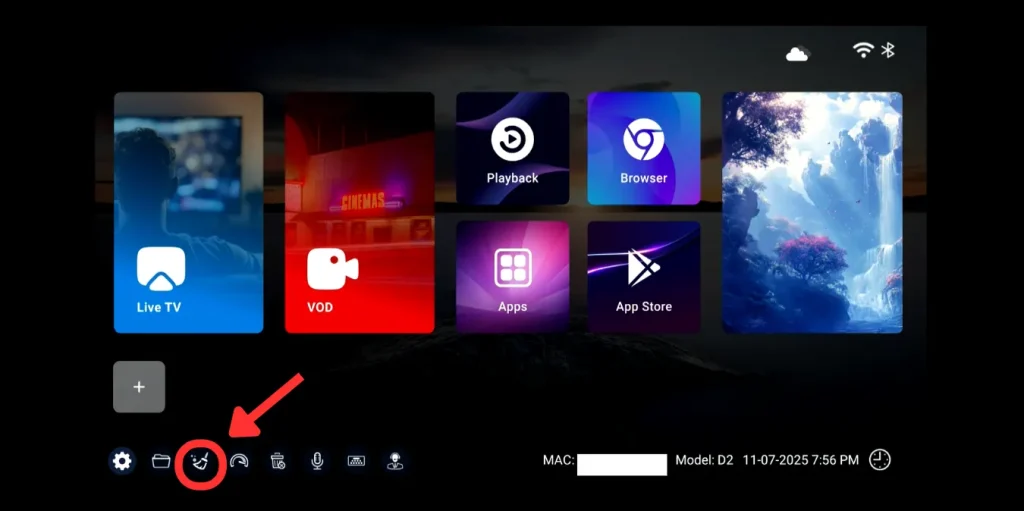
- Clear cache regularly: this helps apps run more smoothly and prevents buffering issues. You can do this by clicking the broom icon at the bottom of the home screen.
By following these simple steps, you’ll not only set up DingBOX correctly but also keep it performing at its best. With regular updates, strong connectivity, and proper maintenance, your device will always deliver faster streaming, clearer visuals, and a seamless entertainment experience every day.
Set up DingBOX is now complete, and your device is ready to bring endless entertainment to your screen. From watching your favorite movies and shows to exploring thousands of apps, your DingBOX turns any TV into a complete smart entertainment hub.
For the best experience, remember to keep your device updated and follow our tips for smooth, high-quality streaming. To explore the latest models, learn about new features, or purchase an official DingBOX, visit DingBOX official website for more information and exclusive updates.
FOLLOW US ON SOCIAL!