
If you’ve got a DingBox and want one single, detailed guide that shows you how to download apps and explains exactly what each app offers, this is the post for you. Below you’ll find step-by-step install instructions for the two bonus apps (Sun TV and Sun+), clear directions for installing every other app from the store, and a breakdown of the content inside the DingBox apps so you know what to expect before you press play.
What content does DingBox offer?
The content ecosystem inside the DingBox apps is massive. In short: Every age group and viewing need is covered. At a glance:
- Tens of thousands of FREE live TV channels — with especially strong coverage for the United States and Canada (the two main markets), plus the United Kingdom and many countries across Europe, Asia, and Africa. If you want international content, DingBox is an excellent single-device choice because it aggregates local and regional feeds across many languages and regions.
- Local + international channels — you’ll find local US/Canada channels for news and local sports, regional channels for Latin America, the Philippines, South Asia, Europe, and more.
- VIP / premium-style channels — many apps carry premium sections or streams that include content similar to HBO (series and movies), Showtime (boxing events and dramas), Starz exclusives like Power and Outlander, Cinemax action thrillers, Disney library items, popular TVB and iQIYI dramas, plus live games on NBA TV, NFL Network, Sky Sports and more. These premium feeds are one reason users rely on DingBox for international and sports viewing.
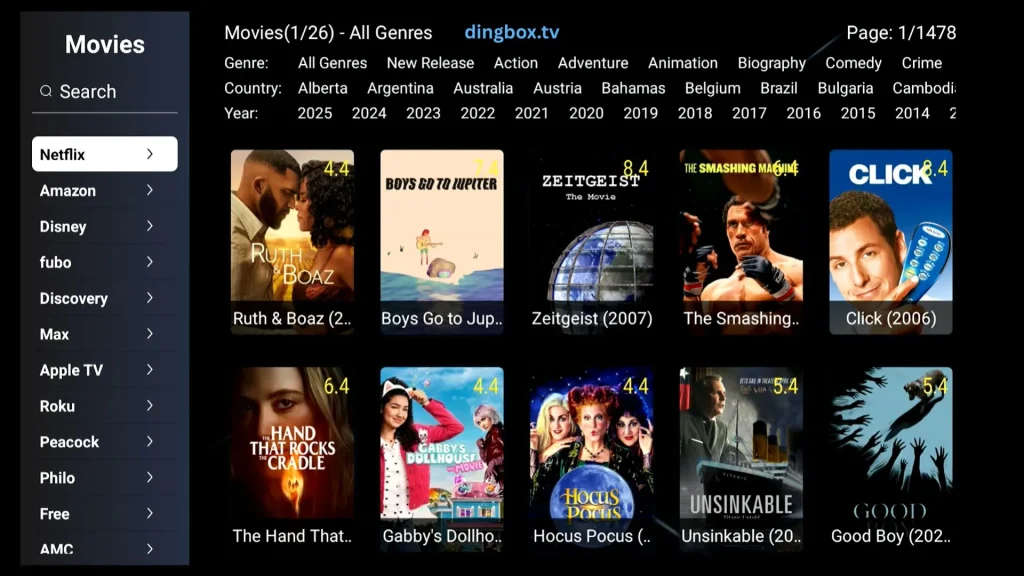
- Huge movie & series libraries — beyond live TV, DingBox apps expose a massive VOD catalog: hundreds of thousands of movies and TV shows (old and new), pulled from major studio sources people search for like Netflix, Amazon, Disney, Fubo, Discovery, Max, Apple TV, Roku partners, AMC, Peacock, and others. There’s even a frequently updated adult library (if available in your region) and a clearly organized kids section so families can find age-appropriate content easily.
How Many DingBox Apps Are Available?
Inside the DingBox app store you’ll find 7 official apps and 7 third-party apps pre-supported. Those official and third-party apps, combined with several preload apps, make DingBox one of the most content-rich boxes around.
Official DingBox Apps
- Sun TV
- Sun+
- Blue TV
- Blue VOD
- Blue Sports
- Playback
- Backup TV
Third-Party Apps on DingBox
- Prime Worldwide
- Prime TV & VOD
- Prime Loops
- Prime Cinema
- Popcorn Time
- Ignite TV & VOD
- Fire TV & VOD
Preloaded Extras
TeaTV, Movie! Plus, BeeTV, Puffin TV, FilmPlus, and more. These are apps people usually sideload on other boxes, but they come preinstalled here. Because DingBox is an open box, users can also install additional APKs outside the store (be careful and only use trusted sources to avoid malware).
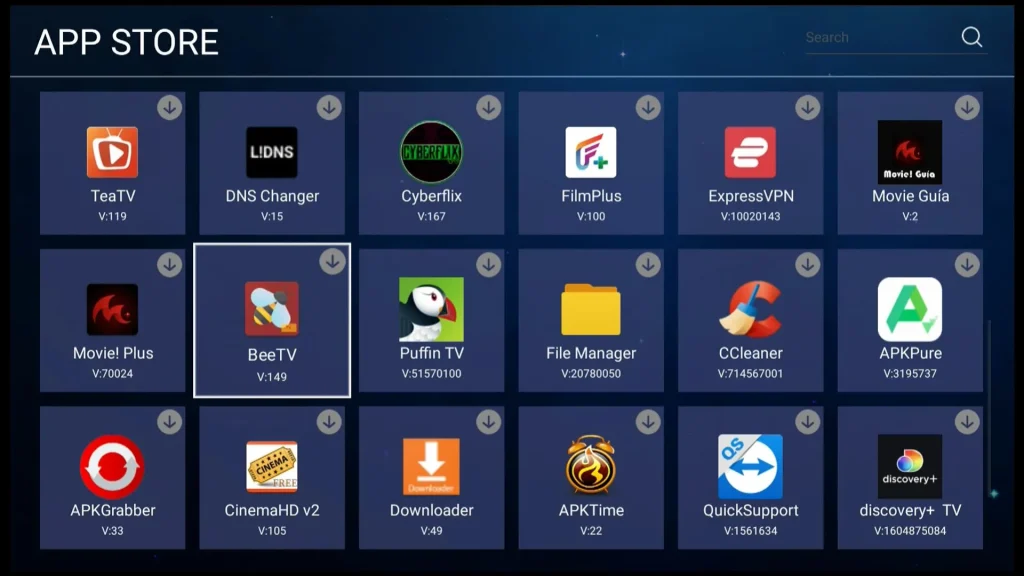
These apps on DingBox together provide a huge mix of live channels, VOD catalogs, and sports feeds. Specialty libraries described above.
How to Download DingBox Apps for Free Streaming?
Important: All apps except Sun TV and Sun+ are available in the DingBox Android App Store. Sun TV and Sun+ are bonus APKs that require a manual download.
Installing Blue Apps and Prime Apps
- Connect your DingBox to the internet. Then, from the home screen, open App Store.
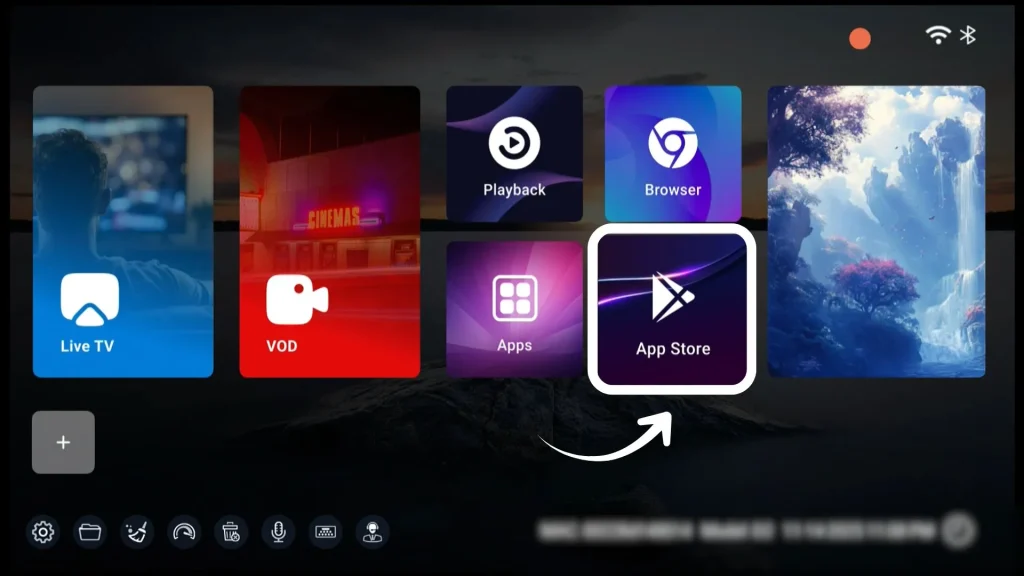
- You’ll see two store entries: Play Store (for standard Android apps) and Android App Store (the DingBox store).
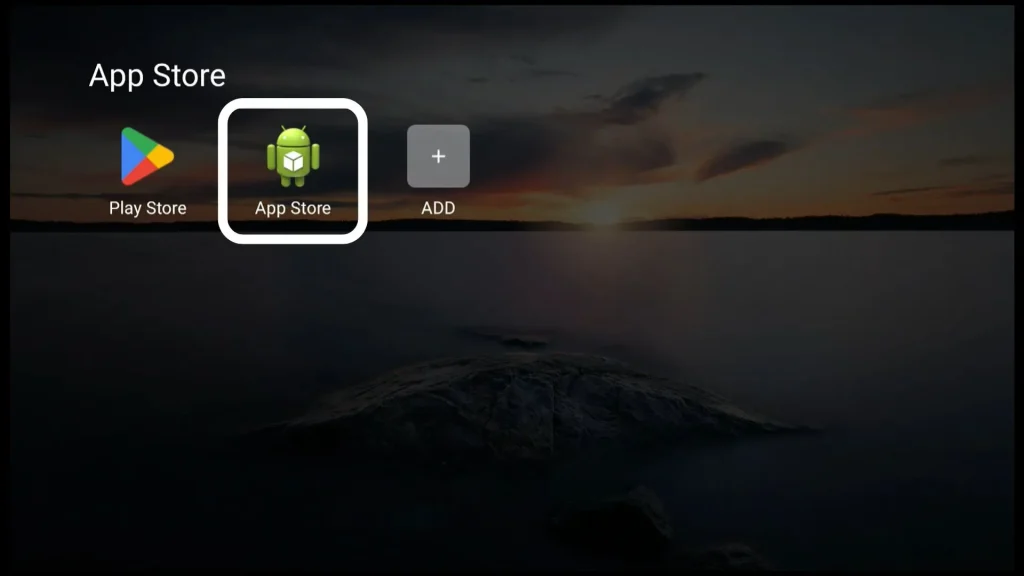
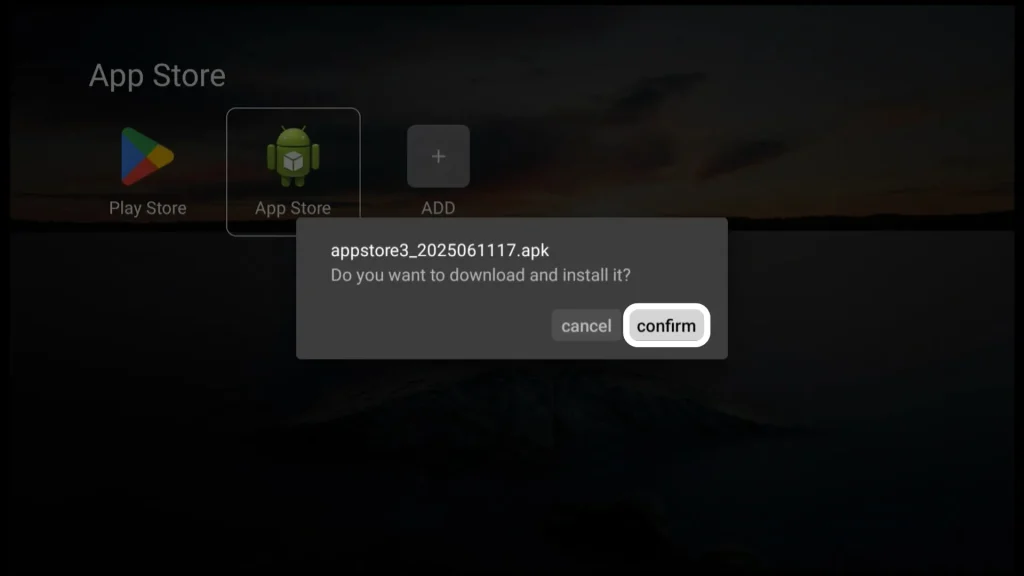
- Select Android App Store, confirm download/installation, and open it.
- A disclaimer notice will appear. Accept it by tapping OK.
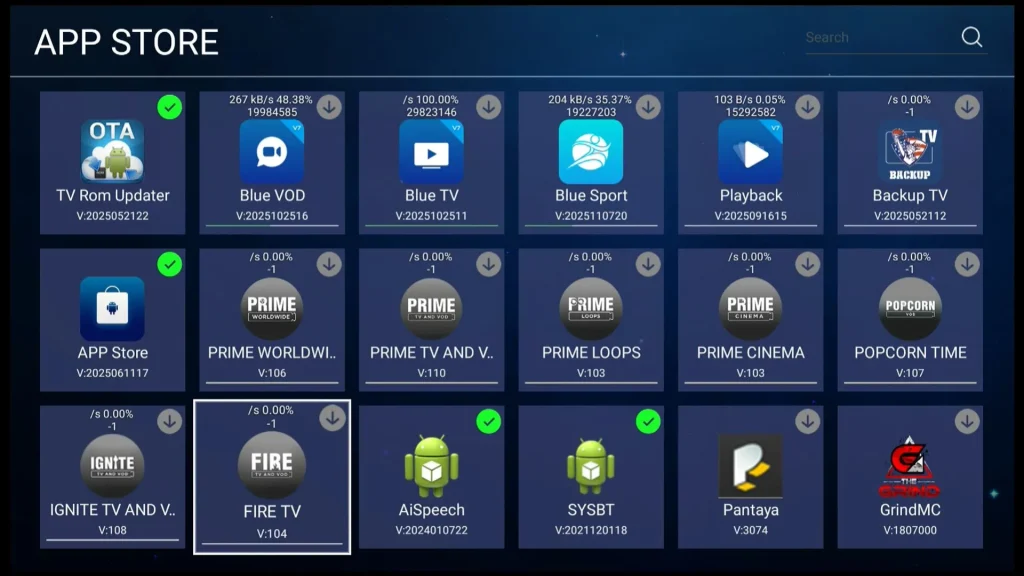
- Browse the list and navigate to the app you want (Blue TV, Blue VOD, Blue Sports, Prime apps, etc.). Press OK to start the download and install.
Installing Sun TV and Sun+
Sun TV and Sun+ are bonus extra apps that aren’t in the store. To install:
- From the home screen open the Browser.
- Put the remote into cursor mode so you can navigate easily.
- In the address/search bar, type 0088899.cc and go.
- A page will list Sun TV and Sun+. Click each app name to download the APK.
- You may see a warning: “This type of file can harm your device.” Press OK to proceed.
- After download: either select Open to install immediately, or go to Files → Local Memory → Download to locate and install the APK manually.
After this step you’ll have the full lineup of DingBox apps ready to use. After installation, apps will appear in your Apps list on the DingBox home screen.
As the manual installation steps can be a bit tricky for older users, we’ve also prepared a visual video guide above to make the process easier to follow.
What Each App Contains
Content numbers are dynamic and update over time, but the current catalog looks like this:
- Blue TV: 2,000+ live TV channels covering USA, Canada, UK, Latino markets, Philippines. It’s one of the most commonly used Dingbox apps for live channel browsing.
- Blue VOD: 16,000+ movies and shows. Great for quick movie nights and on-demand series.
- Blue Sports: 1,000+ live sports channels — broad sports coverage including regional sports networks and international feeds.
- Playback: 85+ channels that record content for 7-day rewind. Perfect when you miss a live broadcast.
- Backup TV: Backup/restore app for Blue TV and Blue VOD content lists.
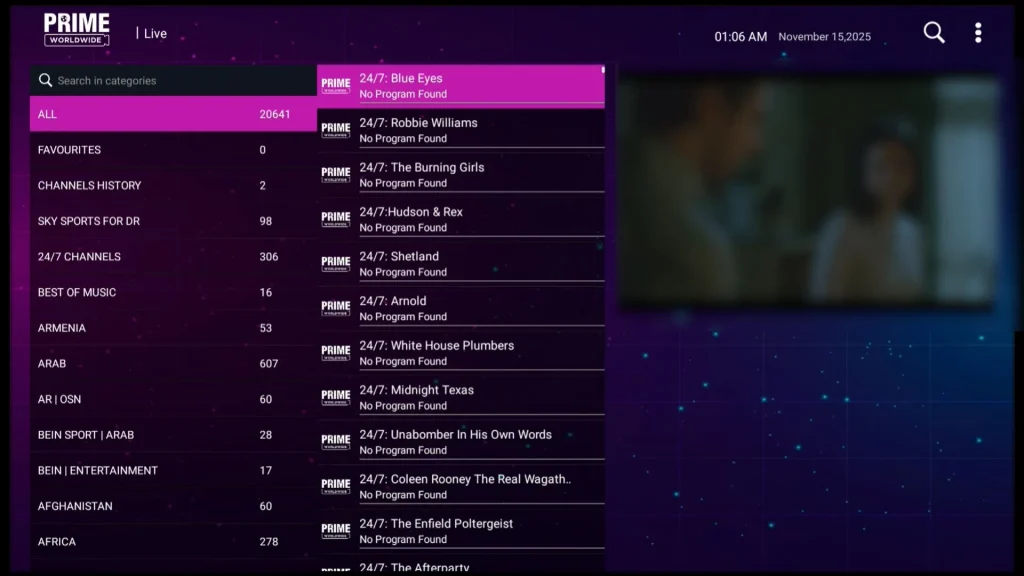
- Prime Worldwide: 20,640+ international live TV channels — a massive international catalog for expats and language-specific viewers.
- Prime TV & VOD: 14,670+ live TV channels, 16,980+ movies, 1,963 series — a hybrid live and VOD powerhouse.
- Prime Loops: 2,000+ live TV channels focusing on loops and continuously updated playlists.
- Prime Cinema: 32,530+ movies, 8,440+ series — among the largest movie catalogs inside the DingBox apps.
- Popcorn Time: updating.
- Ignite TV & VOD: 13,730+ international live TV, 13,460+ movies, 5,330+ series — another heavy hitter for international viewers.
- Fire TV & VOD: live TV channels, movies, and series (updating).
- Sun+: 1,000+ adult films
- Sun TV: 730+ international live TV channels
Together, these apps make DingBox an extremely flexible platform for anyone who wants a single device to cover local news, international channels, premium-style content, live sports, and vast on-demand libraries.
Final notes and tips
Use the Android App Store for all supported apps because it’s the safest route. Because DingBox is an open box, you can sideload other APKs, but always make sure to use trusted sources to avoid malware. If you’re ready to get your own device, you can buy DingBox at the best price by using the coupon SUPERBOXFAM at checkout to save $50. Offering access to thousands of live channels, movies, and series from multiple regions, DingBox is the ultimate all-in-one streaming solution for your home entertainment.